SpiderPass is a self-hosted password and two-step-code manager. Everything is encrypted in your browser before it reaches your own server, so a stolen database is just noise.
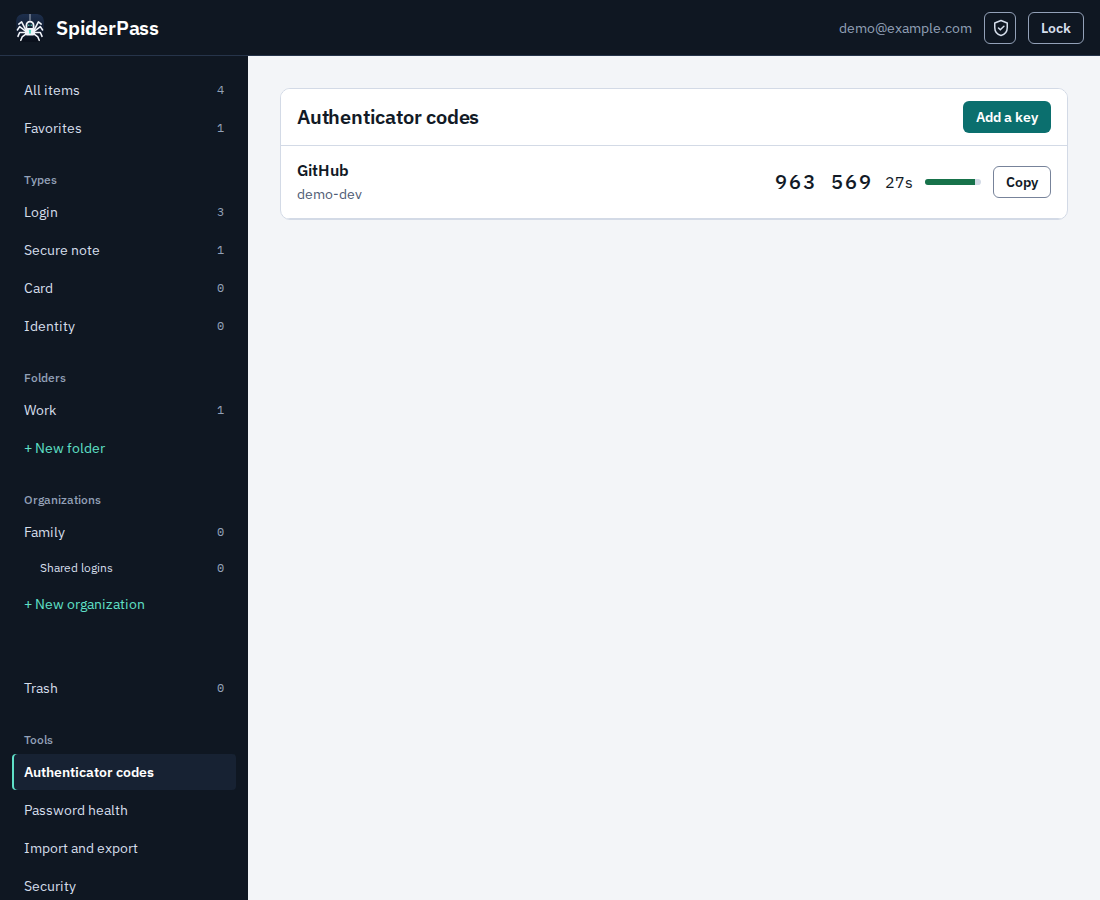
An Authenticator codes page shows every 6-digit code with a countdown
Codes also appear next to their login
Zero-knowledge security
Argon2id and AES-256-GCM in your browser
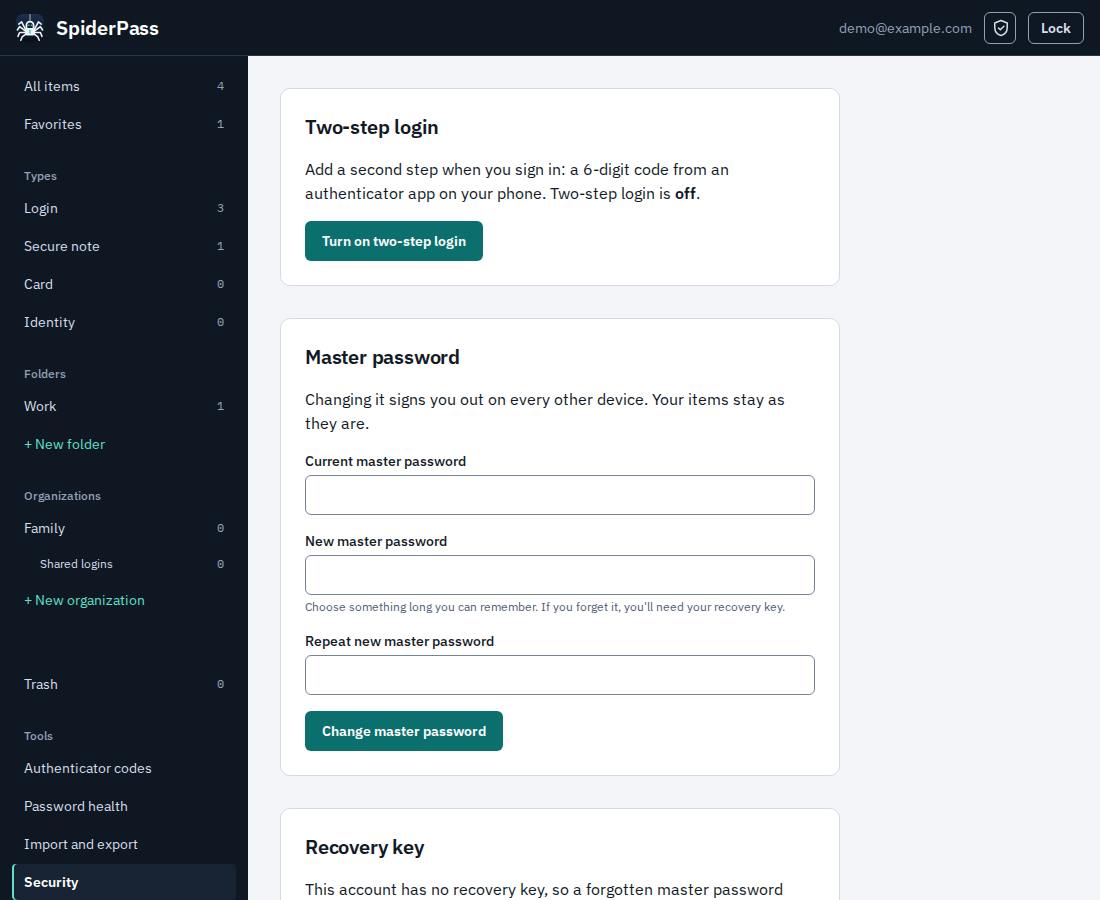
Two-step login for your own account, with a recovery code
Sign in with your email or a username
Sign out any device, change your master password
Forgot your password? You can still get back in
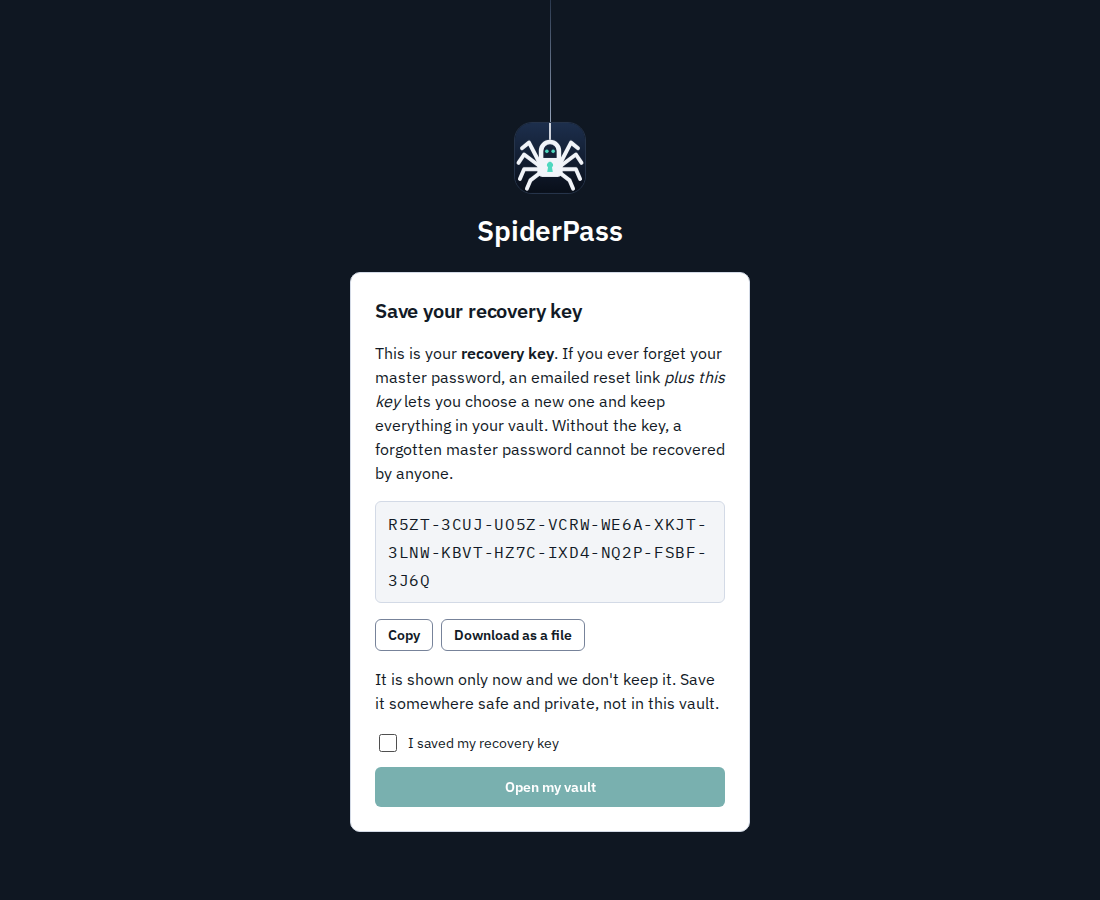
A recovery key is made when you sign up and shown once
An emailed reset link plus that key lets you choose a new master password and keep your whole vault
Without the key nobody can recover it, including the server
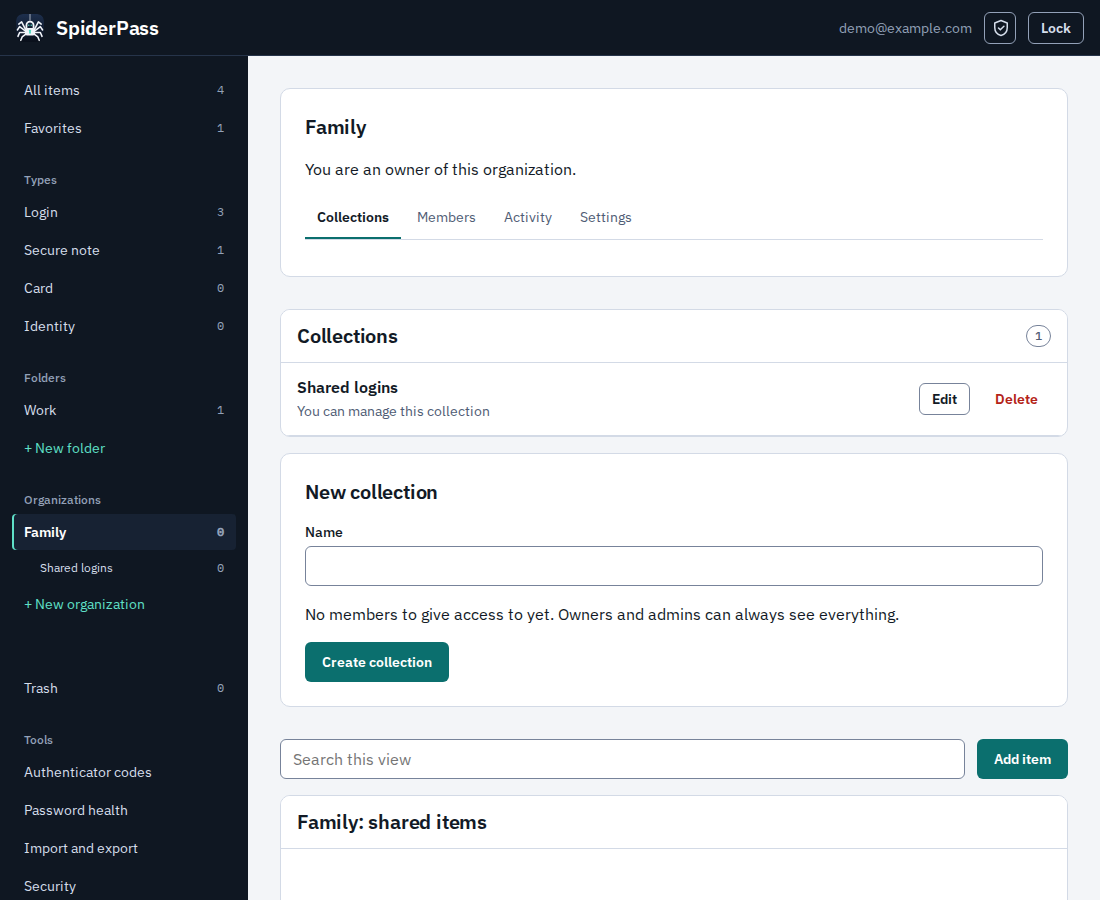
Share with family or a team
Organizations and collections
Owner, admin and member roles; view, edit or manage per collection
Invitations confirmed by an admin after comparing key fingerprints
Audit log of who did what
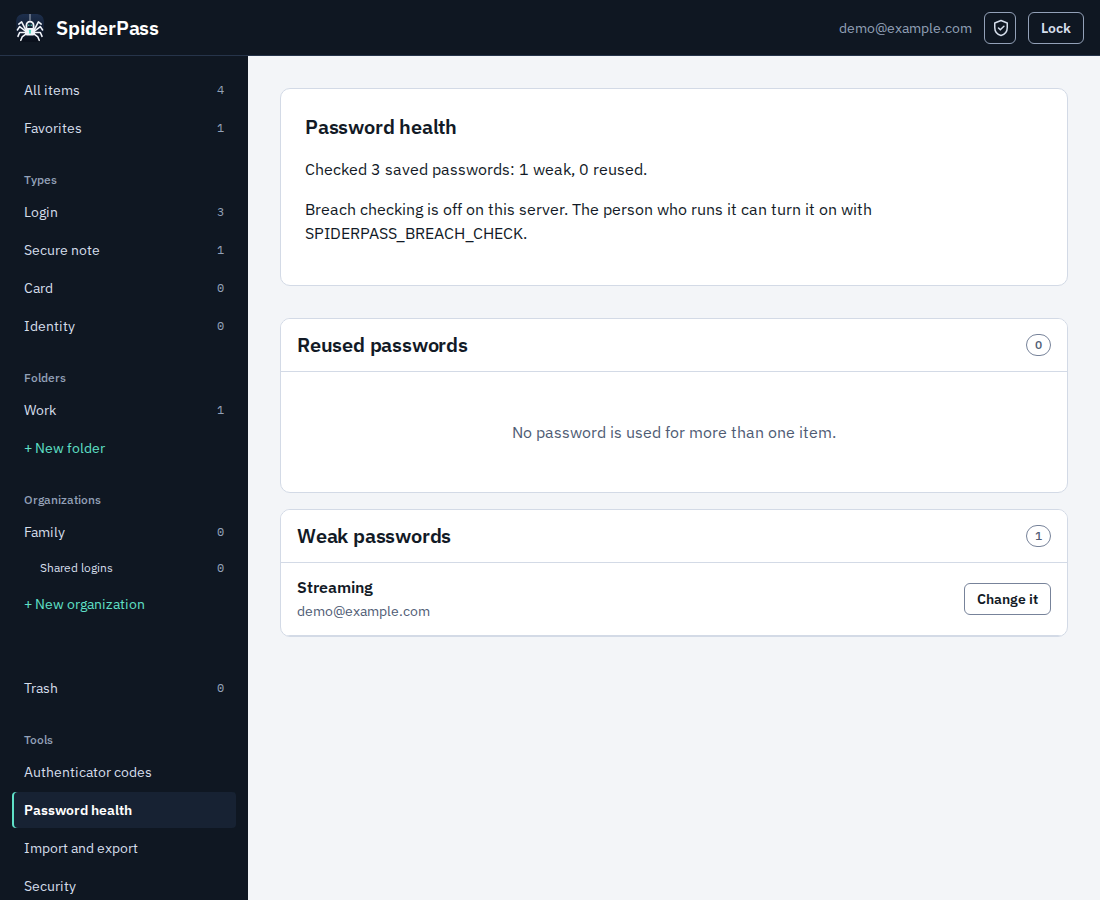
Password health
Finds weak and reused passwords
Optional breach check that never sends a password: only a 5-character hash prefix leaves your server
Import and export
Bring your vault from other managers' JSON exports, or any CSV file
Export as password-protected JSON, plain JSON or CSV
Leave any time
Chrome extension
Fills logins and one-time codes only when you ask
Never fills unencrypted pages, never offers a login to a lookalike domain
Locks automatically
Private by default
Sign-ups are closed: only people you invite can create an account
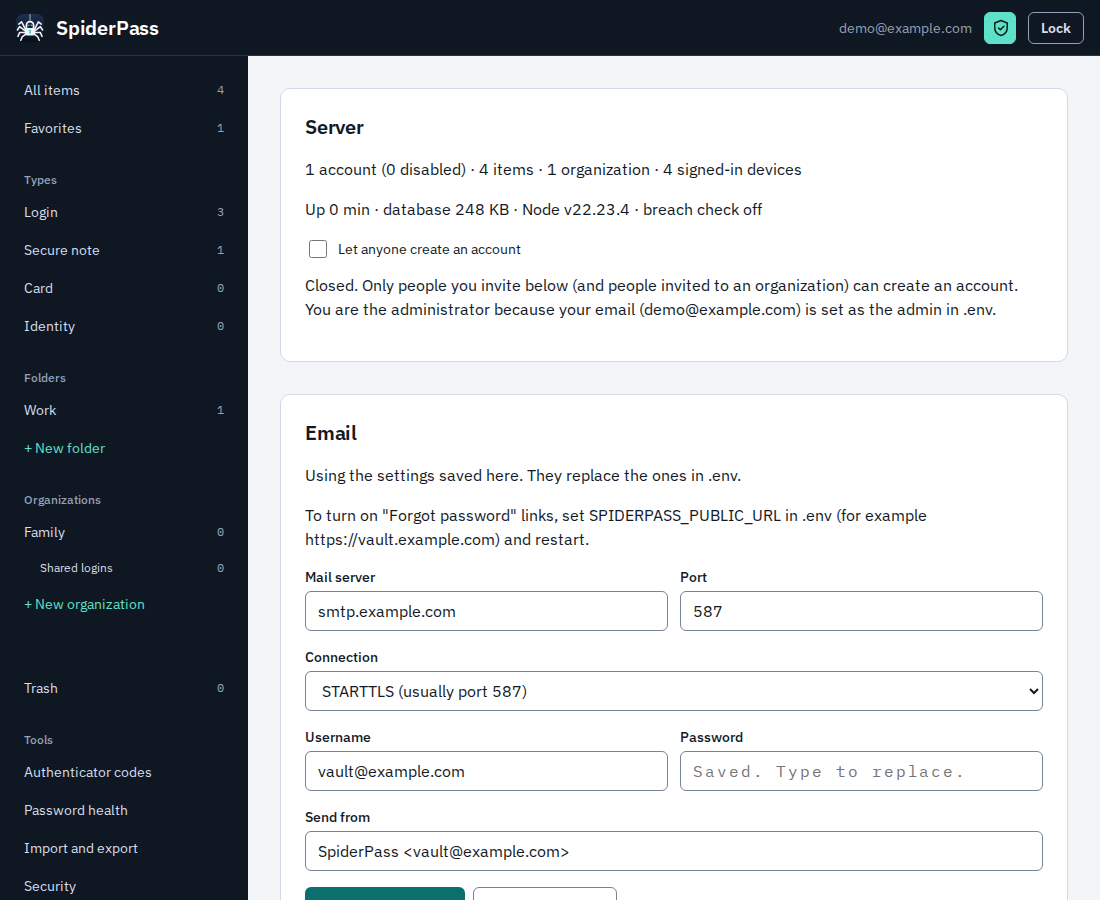
You sign in as the administrator like anyone else and get an admin shield in the app, with no separate admin page
Invite people by email, switch sign-ups on or off, disable or delete accounts
Email, when you want it
Set up SMTP in .env or in the admin panel, and send a test email
Invitations, reset links and notices (new-device sign-in, password changed, account disabled) arrive by email
Nothing is sent, and no mail server is needed, unless you set it up
Easy to run
Docker Compose, one SQLite file, tiny footprint
CI builds amd64 and arm64 images
Take a look
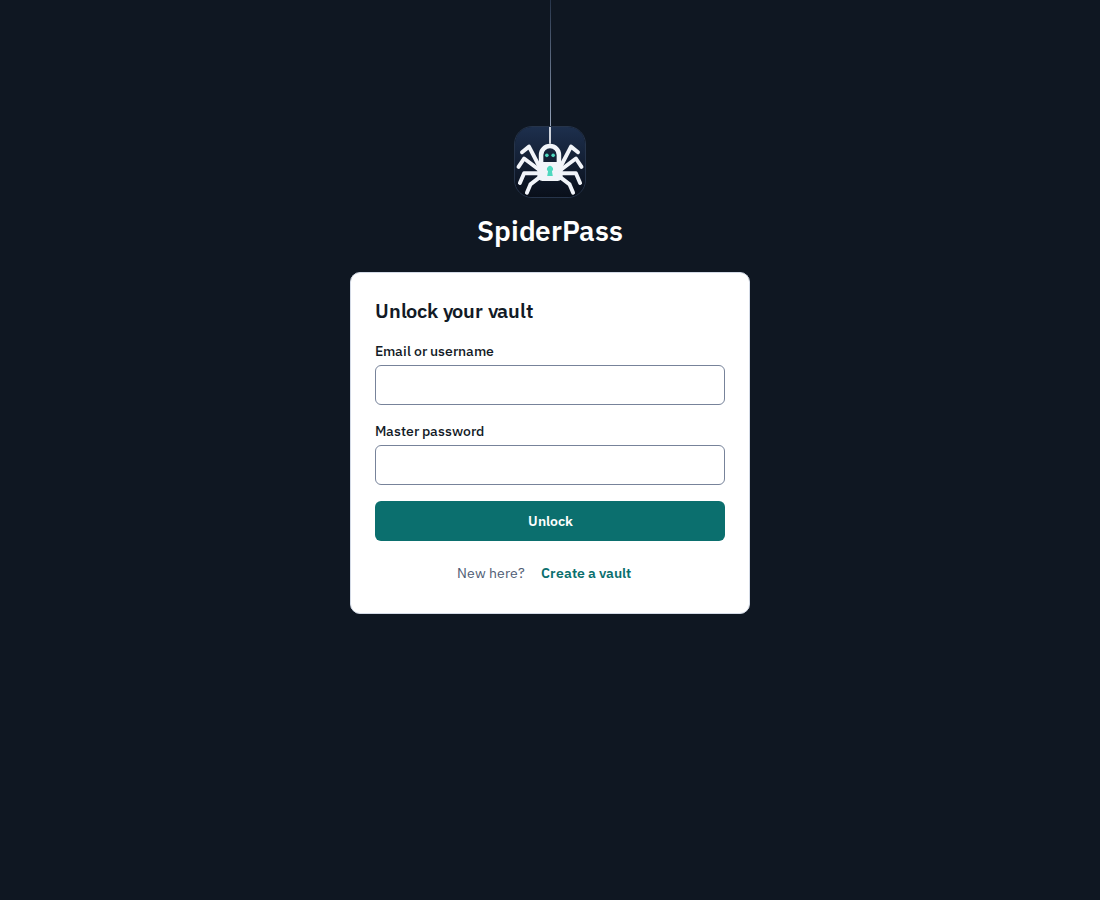
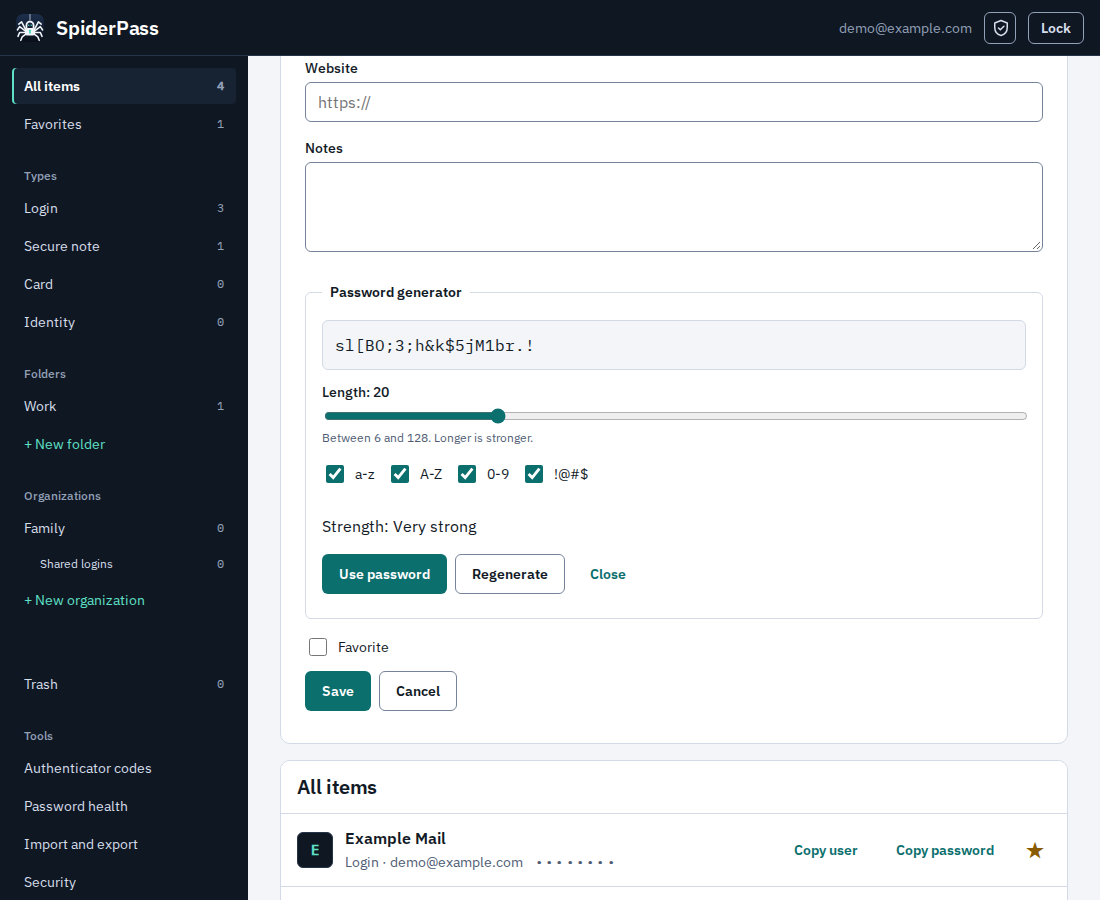
Sign in. The spider lowers itself on its thread.Your recovery key, shown once at sign-upAuthenticator codes, with a live countdownOrganizations and collectionsPassword healthPassword generatorAccount security and devicesThe admin panel, opened from the shield in the top bar
How your data is protected
Your master password never leaves your device. It is stretched with Argon2id in your browser. Only a derived login key is sent to the server; the encryption key stays with you.
Everything is encrypted before upload. A random vault key encrypts every item with AES-256-GCM. Your master password only wraps that key.
Sharing stays private. Each organization has its own key, given to each member encrypted to their personal public key. The server only stores the encrypted copies.
Honest limits
The server can't reset a master password for you, because it never knows it. Keep your recovery key safe: with the emailed reset link it is the only way back in. Lose both the password and the key and nobody can open your vault.
A member you remove keeps any shared data their browser already downloaded, so change the secrets that mattered.
Email is optional. Someone who only reads your inbox can't open your vault, but someone with your inbox and your recovery key can reset your master password, so keep the key private.
The administrator can see accounts, counts and when people sign in, never vault contents.
SpiderPass has not had an independent security review. Treat it as early software.
Install in a few minutes
You need Docker with Compose.
Get the code.
git clone https://github.com/Fahed-Alhammadi/SpiderPass.git
cd SpiderPass
cp .env.example .env
Set a secret key and your admin email. Open .env. Set SPIDERPASS_SECRET_KEY to a long random value (for example the output of openssl rand -base64 32); the server won't start without it. Set SPIDERPASS_ADMIN_EMAIL to your own address (or SPIDERPASS_ADMIN_USERNAME to a username); your admin password is not stored here, you choose it when you create the account. Keep a copy of this file somewhere safe.
Start it.
docker compose up -d --build
Open it. Go to http://localhost:8080, choose Create a vault and use exactly your admin email, right after the first start. Save the recovery key it shows you. Then click the shield in the top bar to invite your family or team. New accounts are closed to everyone else, and the sign-in page stops offering "Create a vault"; invited people get a sign-up link by email.
Use HTTPS for anything beyond your own machine
Browsers only allow the encryption SpiderPass needs on https:// pages and on localhost. Put it behind a reverse proxy that provides HTTPS, for example with Caddy:
and set SPIDERPASS_TRUST_PROXY=true. Back up the Docker volume and your .env. The README has the exact commands and every setting.
Chrome extension
It connects to your own server, decrypts on your device, and fills a login only when you click Fill, press Ctrl+Shift+L, or use the right-click menu. It never runs on pages by itself.
Then open chrome://extensions, switch on Developer mode, choose Load unpacked, and pick the extension/dist folder. A Chrome Web Store listing is planned.